USB-C / Buttons
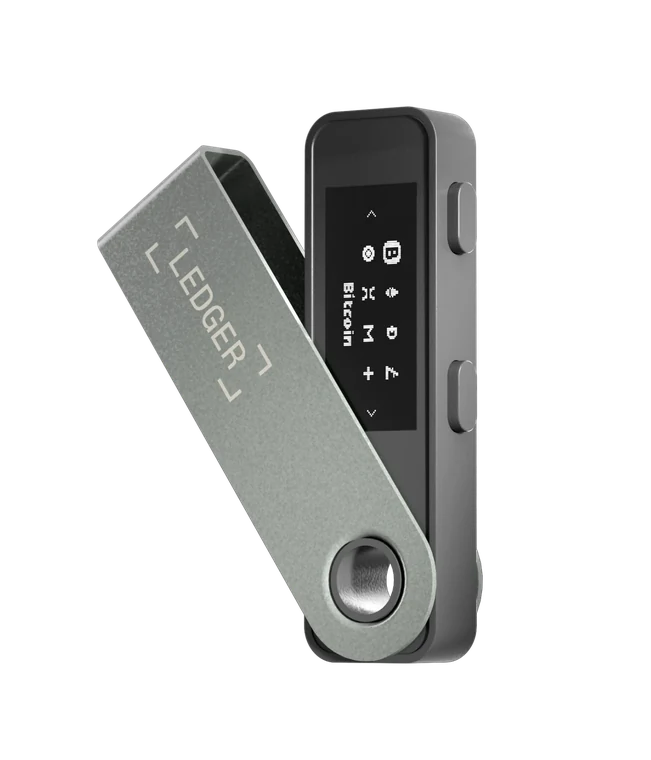
Ledger Nano S Plus
A pocket-size wallet with a metal swivel cover and two buttons for reviewing and confirming transactions.
$79
 coldport
US · USD
Hardware wallets
Compare hardware wallets that keep private keys on the device and let you review transactions before you sign.
Demo catalog · Prices in USD
USB-C / Buttons
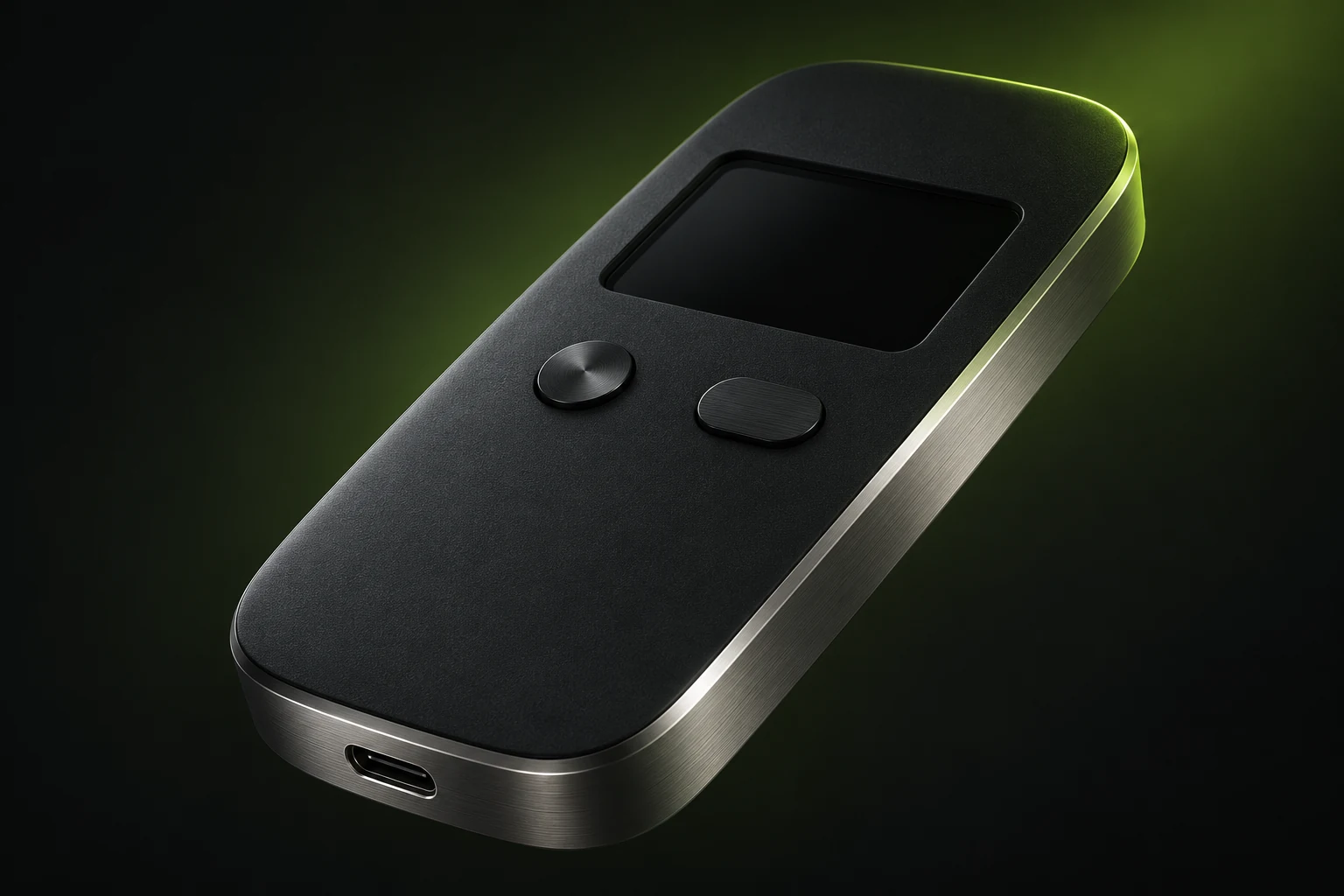
A pocket-size wallet with a metal swivel cover and two buttons for reviewing and confirming transactions.
USB-C / Buttons
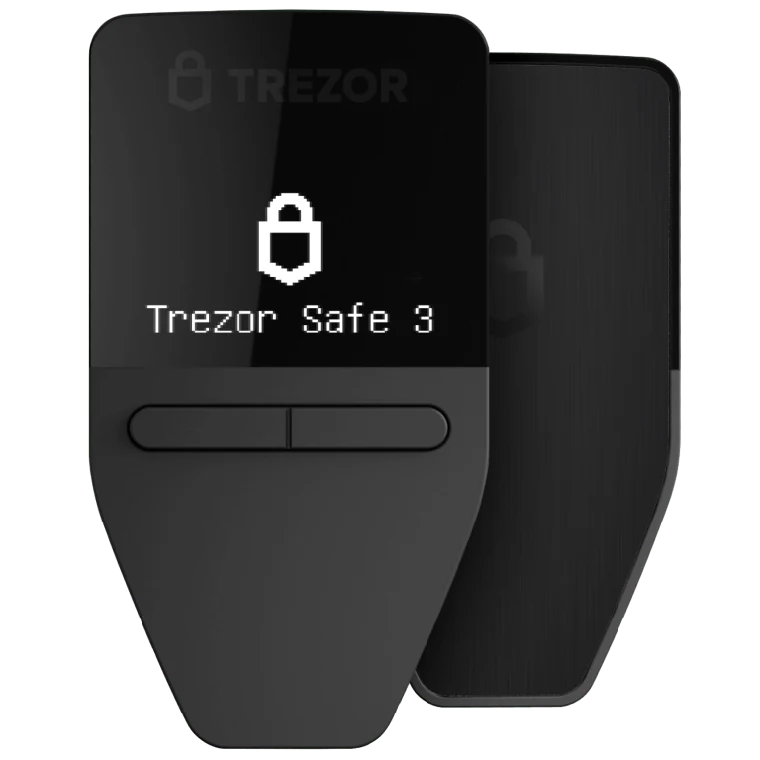
A compact wallet with a monochrome display, physical confirmation buttons, and a Secure Element chip.
USB-C / Touchscreen
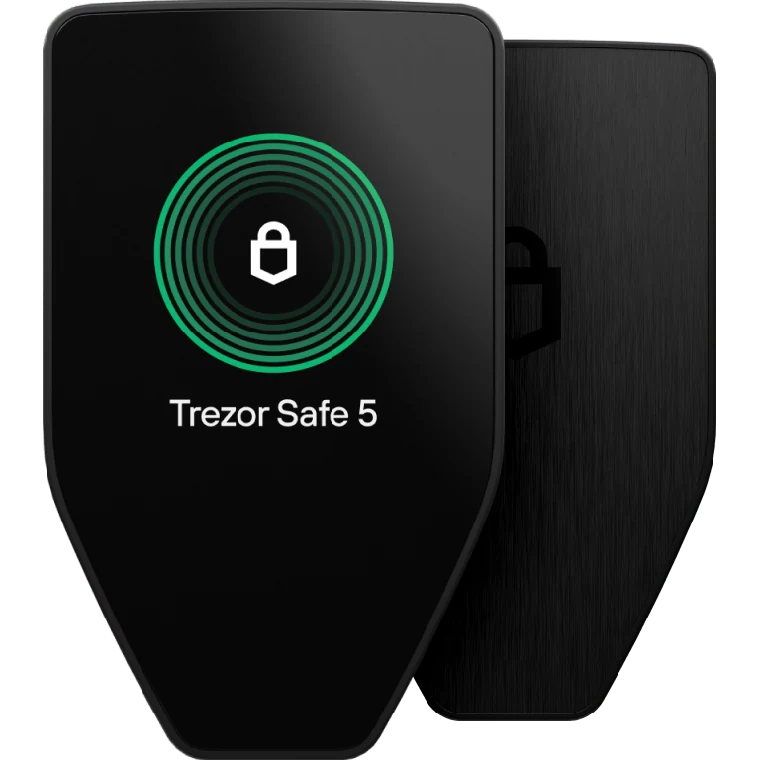
A wallet with a color touchscreen and haptic feedback for reviewing and confirming transactions.
Wallet setup
Set up the device with its manufacturer first. Then connect a compatible wallet app to Uniswap on a supported network.
Read the official Uniswap guideFollow the setup guide from Ledger or Trezor. Keep your recovery phrase offline and private.
Use a compatible wallet interface such as MetaMask to add the account from your hardware wallet.
Open the official Uniswap web app, select Connect, and choose the wallet interface you just set up.
You can browse Coldport either way. To use the Uniswap web app with a hardware wallet, connect it through a compatible wallet app.
Use the official setup instructions for your model. The manufacturer’s setup and the connection to the Uniswap web app are separate steps.
It opens a demo checkout. Enter sample contact details to see the thank-you page. The form discards those details after validation.